
Automatic CDN purge
When a file is uploaded again under the same name, your CDN can keep serving the old copy until its cache expires. Auto purge CDN on replace clears the old copy from the CDN as soon as the new one is uploaded.
When it purges#
- An image optimizer (EWWW, ShortPixel, Imagify, Smush, TinyPNG and others) compresses a file and WP Media Cloud uploads the smaller version.
- You replace a file with Enable Media Replace. If the new file has a different name, the old address is purged too.
Every image size of the file is purged. Purges run in the background, so uploads are not slowed down.
Supported CDNs#
| CDN | What you need |
|---|---|
| Bunny CDN | Your Bunny API key in Settings (also used for Dashboard stats) |
| KeyCDN | API key and Zone ID in the CDN settings |
| CDN77 | API token and Resource ID in the CDN settings |
| Any other CDN | Purge it yourself with the wpmc_purge_urls action (below) |
Turning it on or off#
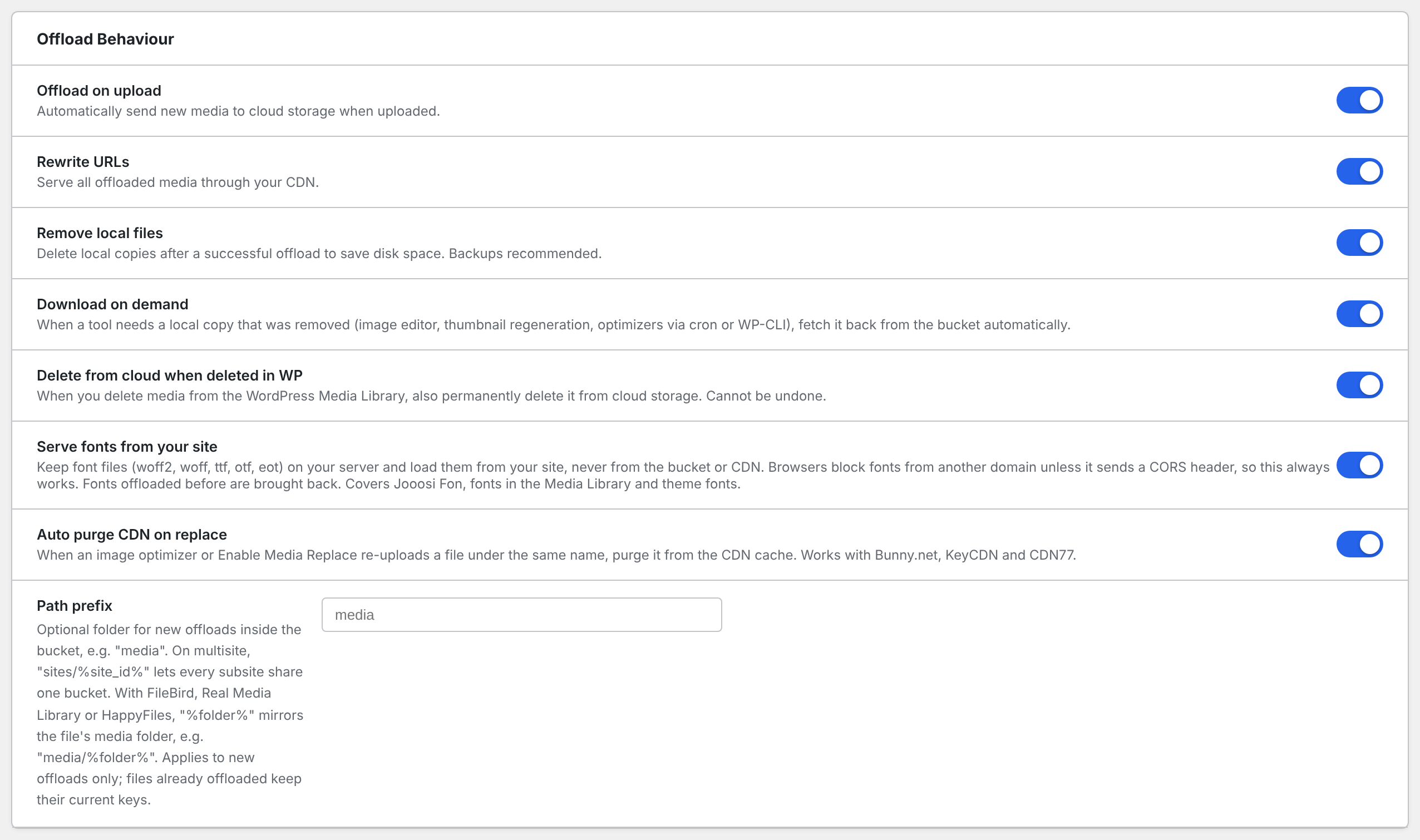
Go to Media Cloud > Settings > Offload Behaviour and switch Auto purge CDN on replace. It is on by default.
Purging another CDN#
The wpmc_purge_urls action fires with the full CDN URLs of the replaced files, after WP Media Cloud has purged any CDN it supports. Use it to purge CloudFront, Cloudflare or another CDN:
add_action( 'wpmc_purge_urls', function ( array $urls ) {
    // Send $urls to your CDN's purge API.
} );
Checking it#
Replace an image with Enable Media Replace, then open its URL in a private browser window. The new image shows straight away.