
Theme and plugin assets (beta)
Theme & Plugin Assets serves the stylesheets and scripts your pages load from your bucket and CDN, next to your media. Images those stylesheets use are copied too, and so are fonts when Serve fonts from your site is off. This feature is in beta.
What is copied#
- Stylesheets and scripts that WordPress loads for your theme and plugins (
.css,.js,.mjsand their.mapfiles) - Images referenced inside those stylesheets (
.svg,.png,.jpg,.gif,.webp,.avif,.ico) - Fonts referenced inside those stylesheets (
.woff,.woff2,.ttf,.otf,.eot), only when Serve fonts from your site is off
Not copied:
- Stylesheets or scripts generated by PHP. They keep loading from your site.
- Files loaded from other sites, such as Google Fonts.
- Font plugin stylesheets and fonts: Jooosi Fon (
uploads/jooosi-fon) and Nahnu Fonts (uploads/nahnu-fonts). See Font plugins. - A stylesheet whose images (or fonts, with Serve fonts from your site off) could not be copied. It stays local, so it never points at a missing file.
Inside copied stylesheets, url() references, root-relative paths (/wp-content/...) and @import rules are rewritten to the CDN.
Fonts in copied stylesheets#
With Serve fonts from your site on (the default since 1.2.3), a copied stylesheet loads its fonts from your site: each font url() becomes the full address of the font on your site, for example https://example.com/wp-content/themes/your-theme/fonts/inter.woff2. The stylesheet itself still comes from the CDN. This works without any CORS rule, because the fonts are on your own domain.
With the setting off, fonts are copied to the bucket and load from the CDN. Browsers then need a CORS rule on your CDN or bucket that allows your site (see Troubleshooting).
Changing Serve fonts from your site starts the copies over in the background, so every stylesheet is copied again with the right font addresses.
Updates are picked up automatically#
Each file is stored under an address that includes a fingerprint of its contents. When a theme or plugin update changes a file, it is copied again under a new address, so visitors never get a stale copy and no CDN purge is needed.
Turning it on#
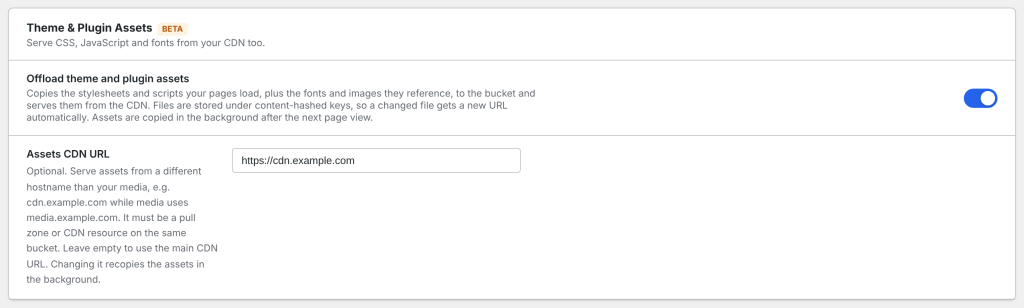
- Go to Media Cloud > Settings and find Theme & Plugin Assets.
- Switch on Offload theme and plugin assets and save.
- Open a few pages of your site. Assets are copied in the background after the next page views, and switch to the CDN as each copy finishes.
Assets CDN URL (optional)#
To serve assets from a different hostname than your media, for example cdn.example.com for assets and media.example.com for media, enter it in Assets CDN URL. It must be a pull zone or CDN resource on the same bucket. Leave it empty to use your main CDN URL.
Changing the provider, bucket, CDN URL, Assets CDN URL or Serve fonts from your site starts the copies over in the background.
Checking it works#
Open a page, view its source, and look at the <link rel="stylesheet"> and <script> tags: theme and plugin files now load from your CDN hostname. Open one of the copied stylesheets: its font addresses start with your site’s address while Serve fonts from your site is on.
Troubleshooting#
- Icons or fonts missing after turning it on: with Serve fonts from your site off, browsers only load fonts from another hostname when it allows your site. Turn the setting back on, or add a CORS rule on your CDN or bucket that allows your site’s address (
Access-Control-Allow-Origin). The Web Fonts (CORS) check on the Health tab tests this and can add the rule for most providers. See Serve fonts from your site. - A file still loads from your site: it is generated by PHP, loaded from another site, belongs to a font plugin, or its copy failed. A failed copy is retried after an hour, then less often, up to once a day.
- Turning it off: switch it off and save. Pages load assets from your site again straight away.