
Easy Digital Downloads
WP Media Cloud works with Easy Digital Downloads (EDD). Offloaded product files download from the cloud, and files in EDD’s protected folder stay private.
What the integration does#
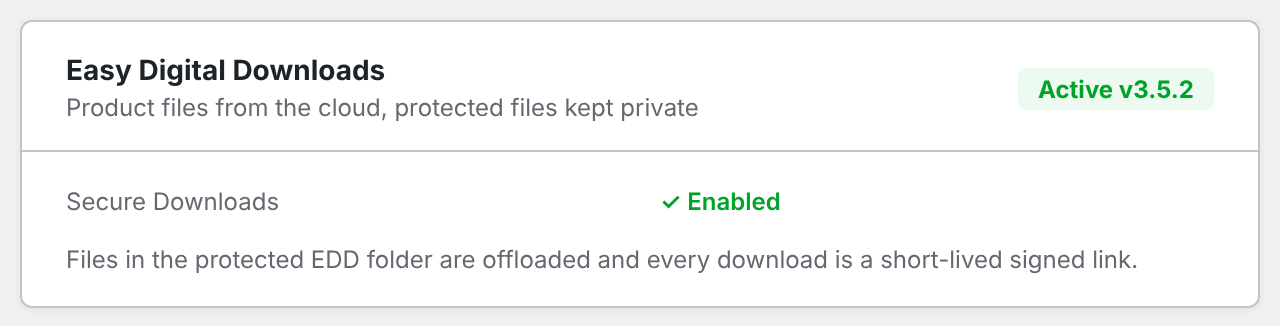
- Product files download from the cloud. When a customer downloads an offloaded file, EDD is pointed at the cloud copy. This works with Remove local files on, and with both EDD download methods.
- Protected files stay protected. EDD stores product files in a protected
uploads/eddfolder that visitors cannot open directly. By default those files are not offloaded, so they never end up in a public bucket. - Secure downloads. With Enable secure downloads on, protected files are offloaded too, and every download is a signed link that expires after 10 minutes.
Secure downloads by provider#
| Provider | How links are signed | Protected files offloaded |
|---|---|---|
| Amazon S3, DigitalOcean Spaces, Wasabi, Hetzner, Google Cloud Storage, other S3-compatible | Presigned URL on the bucket endpoint, using your storage keys | Yes, without public access |
| Bunny.net | Bunny Token Authentication on a downloads pull zone | Yes, once a Token Authentication key is saved |
| Cloudflare R2, Backblaze B2 | Presigned URL | No: public access is set for the whole bucket, so protected files stay on your server |
If a link cannot be signed, a protected file is never handed out as a plain CDN address: it is served from your server if it is still there, or the download is refused.
Setting it up#
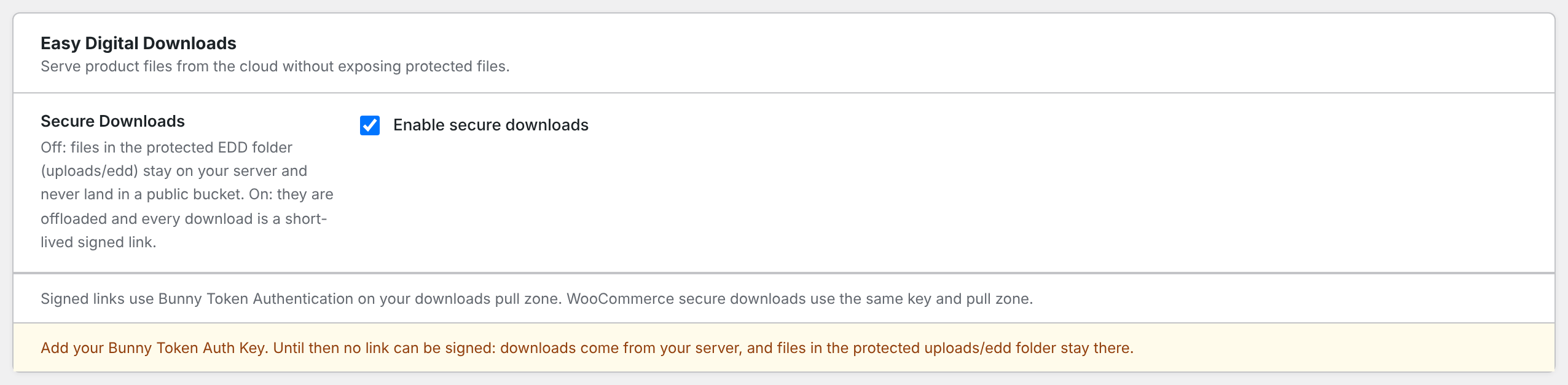
The Easy Digital Downloads card appears in Media Cloud > Settings when EDD is active.
- Tick Enable secure downloads.
- Bunny.net only: set up a downloads pull zone (below) and enter its Bunny Token Auth Key and Downloads Pull Zone URL. If WooCommerce is also active, both fields are in the WooCommerce card and both stores use them.
- Click Save Settings.
- Run a bulk offload, so protected files that were kept local are offloaded.
Bunny.net: the downloads pull zone#
Bunny Token Authentication protects every file in a pull zone, so it cannot be turned on for the pull zone that serves your images. Use a second pull zone for downloads:
- In the Bunny dashboard, go to CDN > Add Pull Zone, and choose your storage zone as the origin. Name it for downloads, for example
yoursite-downloads. - In the new pull zone, open Security > Token Authentication, turn it on, and copy the URL Token Authentication Key.
- In WordPress, paste the key into Bunny Token Auth Key, and the new pull zone’s address (for example
https://yoursite-downloads.b-cdn.net) into Downloads Pull Zone URL. Save.
Your images keep loading from your main pull zone, which stays without Token Authentication.
Testing it#
- Buy a test product, or resend a download link from Downloads > Orders.
- Click the download link with your browser’s Network tab open.
- The redirect goes to your bucket or downloads pull zone with
X-Amz-Signature(S3-type) ortokenandexpires(Bunny.net) in the address.
Troubleshooting#
- The Easy Digital Downloads card is missing: EDD is not active. Activate it.
- Protected files are not offloaded: secure downloads are off, Bunny.net has no Token Authentication key, or you use Cloudflare R2 or Backblaze B2. The card says which.
- Bunny.net download returns 403: the key is not from the downloads pull zone, or Token Authentication is off on it. Copy the key from that pull zone again and save.
- Images stopped loading after turning on Token Authentication: it was turned on for the pull zone that serves your images. Turn it off there and use a downloads pull zone instead.