
Remove local copies
Remove Local Copies deletes the server copies of media that is already in your bucket. Use it when you offloaded media with Remove local files turned off, for example during a migration, and now want the disk space back.
Each file is checked in the bucket right before its local copy is deleted. Afterwards the bucket holds the only copy of those files.
What gets removed, and what stays#
A local file is deleted only when all of these are true:
- WP Media Cloud has an offload record for it, in the bucket and provider you use now.
- The file is in the bucket at that moment, checked with a live request.
- The bucket copy has the same size as the local file.
- The file is not a protected store file (WooCommerce
woocommerce_uploadsor Easy Digital Downloadseddfolders). - The file is not a font file (
.woff2,.woff,.ttf,.otf,.eot). Font files always keep their copy on your server; font plugins read them, and they are small. See Serve fonts from your site.
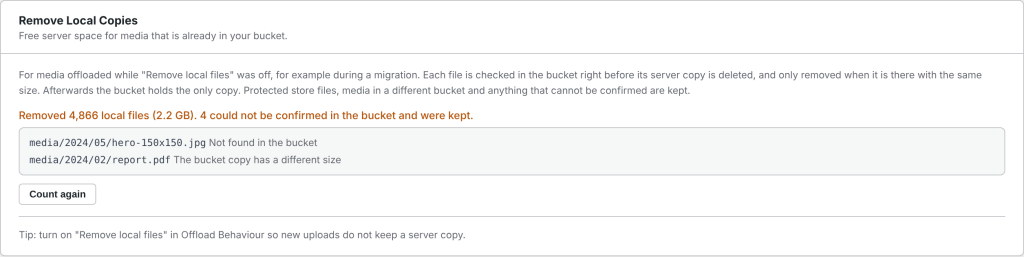
Everything else is kept, and listed with the reason:
| Reason shown | What it means |
|---|---|
| Not found in the bucket | The record exists, but the file is missing from the bucket, or the bucket could not be reached. |
| The bucket copy has a different size | The local file changed after it was uploaded, for example an optimizer compressed it again. |
| Could not be deleted (file permissions) | The server would not let WordPress delete the file. |
Protected store files and media offloaded to a different bucket are counted separately and never touched. Font files and media that was never offloaded are not counted at all.
Before you start#
- Back up
wp-content/uploads, or make sure your host’s backup includes it. - Make sure the bulk offload has finished: the Dashboard shows no media left to offload.
- Turn on Remove local files in Settings > Offload Behaviour, so new uploads do not keep a server copy either.
Removing local copies#

- Go to Media Cloud > Settings and scroll to Remove Local Copies.
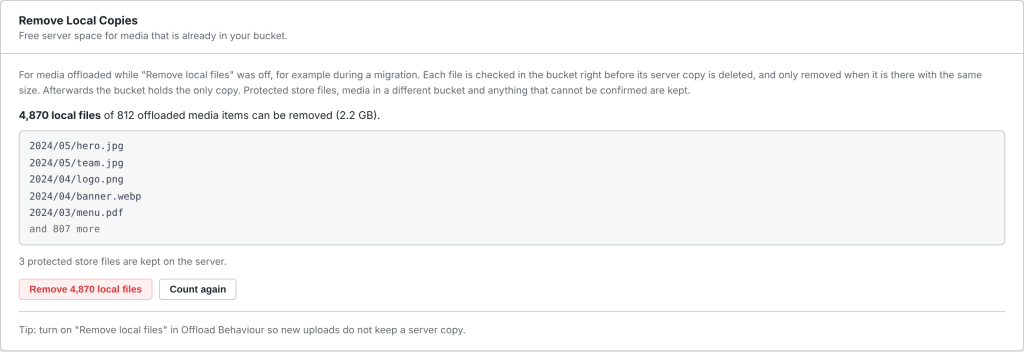
- Click Count local copies. This reads your offload records only; nothing is checked or deleted yet.
- Review the count, the size and the sample of files.
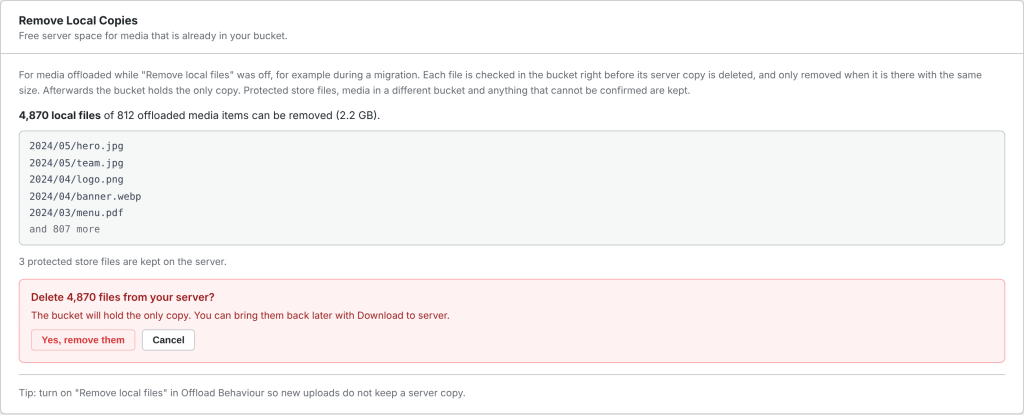
- Click Remove N local files, then Yes, remove them.
- Keep the tab open until the result appears. Files that were kept are listed with their reason.
If the tab closes part way, run it again: files already removed are skipped.
From the command line#
For large libraries, WP-CLI is faster and does not need a browser tab:
wp wpmc remove-local --dry-run
wp wpmc remove-local --yes
--dry-run counts without checking the bucket or deleting anything. On multisite, add --network or --sites=2,5.
A few items at a time#
In Media > Library (list view), select items, choose Remove local copies from Bulk actions and click Apply. The same checks run for each file; protected store files and font files are skipped.
Getting files back#
To restore local copies later, use Download to server in the Media Library bulk actions, Download All to Server on the Dashboard, or wp wpmc restore. See Local file removal for the risks of running without local copies.