
Settings screen shows an old versionNew
After you update WP Media Cloud, the Media Cloud settings screen should show the cards and options of the version you installed. If it shows options from an earlier release, or misses ones that the changelog says are new, an old copy of the screen is being loaded.
How WP Media Cloud prevents it#
From version 1.2.4:
- The addresses of the settings screen’s script and stylesheet include a fingerprint of each file. Every update, even a reinstall of the same version with changes, gives them new addresses that no browser, CDN or cache plugin has stored.
- Right after the screen loads, WP Media Cloud checks that the script that ran is the one the plugin ships. If it is not, it downloads the script and stylesheet again, past every cache, and reloads the page once.
- If the old copy still loads after that, a message above the page says so, and names what usually serves it. The page never reloads more than once.

Sites updating from a version before 1.2.4 may still see the old screen once, until the first page load of the new version.
If you see the message, or the screen looks out of date#
- Check for a second copy of the plugin. Open Plugins. If a notice says more than one copy of WP Media Cloud is installed, it names each folder and version. Remove the copy you are not using, as described under More than one copy below (usually an older folder such as
wp-media-cloud-1left by an earlier upload). - Clear your cache plugin. Clear the cache of any cache or optimisation plugin (for example WP Rocket, LiteSpeed Cache, W3 Total Cache, Autoptimize or Perfmatters). If it combines or minifies scripts in the admin area, exclude
wp-media-cloud/assets/js/admin.jsfrom that. - Purge your CDN or server cache. If your host or a CDN (for example Cloudflare) caches files from
wp-content/plugins, purge it. - Reload the settings screen with a hard refresh: Cmd+Shift+R on a Mac, Ctrl+Shift+R on Windows.
To check, compare the screen with the release notes: for example, from 1.2.2 the Update Download URLs row on the WooCommerce card starts with “Optional. With Secure Downloads on…”.
More than one copy of WP Media Cloud#
Uploading a plugin zip whose folder name differs from the installed one (for example a file downloaded twice and saved as wp-media-cloud-1.zip) installs a second copy next to the first. Only one copy can be active, and it may be the older one. From 1.2.4, WP Media Cloud shows a notice on the Plugins page and on its own page when it finds another copy, with the folder and version of each.
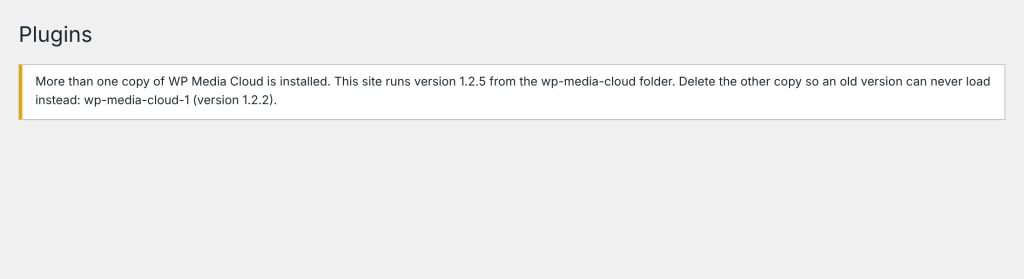
To fix it:
- Note which copy is active on the Plugins page.
- If the active copy is the newer one and it is 1.2.5 or newer, delete the other on the Plugins page.
- If the active copy is the older one, deactivate it, activate the newer copy, then delete the older one. Your settings and offload records are kept: from 1.2.5, the active copy stops the deleted copy’s uninstall routine from removing them.
With 1.2.4 or older active, deleting the other copy on the Plugins page runs that copy’s uninstall routine, which removes the settings, licence and offload records both copies share. Update the active copy to 1.2.5 first, or remove the extra folder from wp-content/plugins by SFTP or your host’s file manager, which never runs an uninstall routine.