
Kadence
WP Media Cloud 1.2.1 and later serve Kadence images from your CDN with no setup. This covers the Kadence theme, the free Kadence Blocks plugin and the Kadence add-ons that store image addresses.
Why Kadence needs its own support#
Most images reach the page through WordPress attachment functions, which WP Media Cloud already switches to your CDN. Kadence also saves many image addresses as plain text and prints them in places WordPress never passes through those functions, such as inline CSS in the page head. Before 1.2.1 those images kept loading from your server, and broke once local files were removed.
What is covered#
| Where | What loads from the CDN |
|---|---|
| Kadence theme Customizer | Site background, header and footer row backgrounds, title bar backgrounds, transparent header backgrounds |
| Kadence theme header and footer builder | Images in the Header HTML, Mobile HTML and Footer HTML elements |
| Kadence Blocks | Background images on Row Layout, Section, Column and other blocks, and image addresses in block CSS |
| Kadence Blocks outside the post | Kadence headers, navigation menus, hooked elements, block widgets and template parts |
| Kadence Conversions | Images in popups, slide-ins and banners |
| Kadence Slider | Slide background and layer images |
Images Kadence loads by attachment ID, such as the logo, featured images and galleries, were already served from the CDN and still are.
Only files in your bucket are switched#
An address is switched only when the file is offloaded. A file that is not offloaded yet, for example while a bulk offload is still running, keeps its local address and keeps working.
The switch happens as the page loads. Your saved Kadence settings and block data keep their local addresses, so deactivating WP Media Cloud returns everything to local URLs. To write the CDN addresses into the database permanently, use the URL Replace tool with Also search plugin tables turned on.
Checking it works#
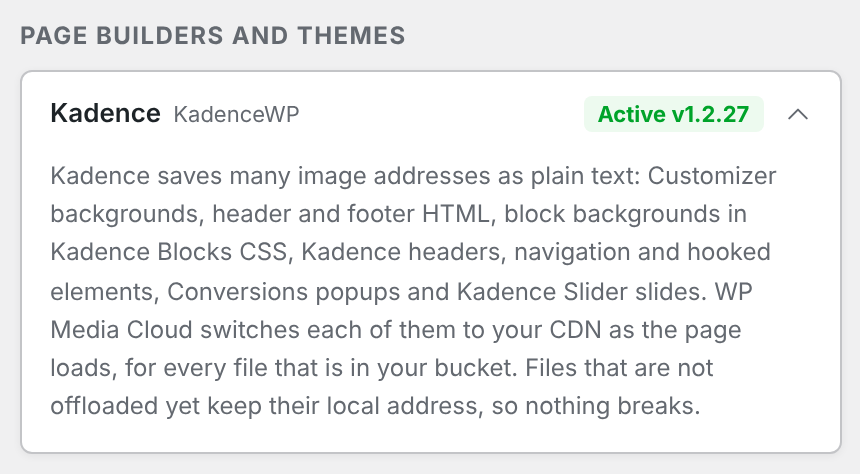
- Go to Media Cloud > Integrations. The Kadence card under Page Builders and Themes shows Active and lists the Kadence parts it found.
- Clear your page cache, and your CDN’s full-page cache if you use one.
- Open a page with a Kadence background image, right-click the background area and choose Inspect. In the Styles panel, the
background-imageaddress starts with your CDN hostname.
Requirements#
- WP Media Cloud 1.2.1 or later
- Rewrite URLs turned on in Settings > Offload Behaviour (on by default)
If an image still loads from your server#
- Check the file is offloaded: open it in the Media Library; the WP Media Cloud field says Offloaded.
- Clear page and CDN caches. Pages cached before the update still hold the old HTML.
- Kadence Pro and Kadence Blocks Pro elements built from Kadence blocks are covered. If one still shows a local address, run the URL Replace tool with Also search plugin tables on, and contact support with the page URL so we can add it.