
Clean up deleted media
Media you delete in WordPress while Delete from cloud when deleted in WP is off keeps its files in the bucket. Clean Up Deleted Media finds those files and deletes them, after you confirm.
What it deletes, and what it keeps#
The scan works from WP Media Cloud’s own offload records, so it only ever deletes files the plugin uploaded for media that no longer exists in WordPress. Anything else in the bucket is never touched.
It keeps:
- files another attachment still uses, for example a media translation (WPML, Polylang) or a newer image that reused the same file name
- files of media offloaded to a different bucket than the one you use now; these are listed separately
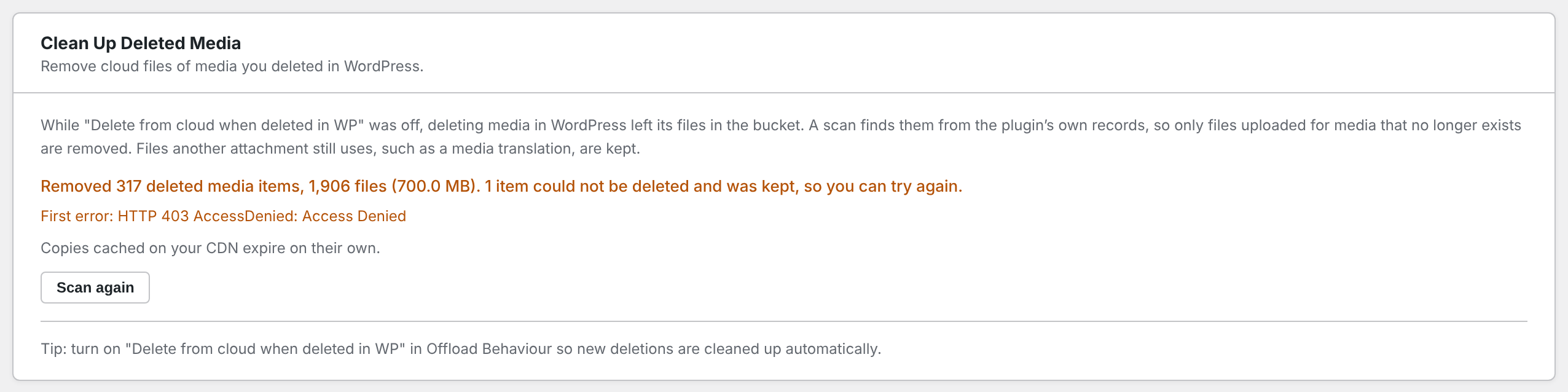
- the record of a file the storage refuses to delete, so the next clean-up can try again
When a deleted item shares all its files with media that still exists, only its leftover record is removed.
Running a clean-up#

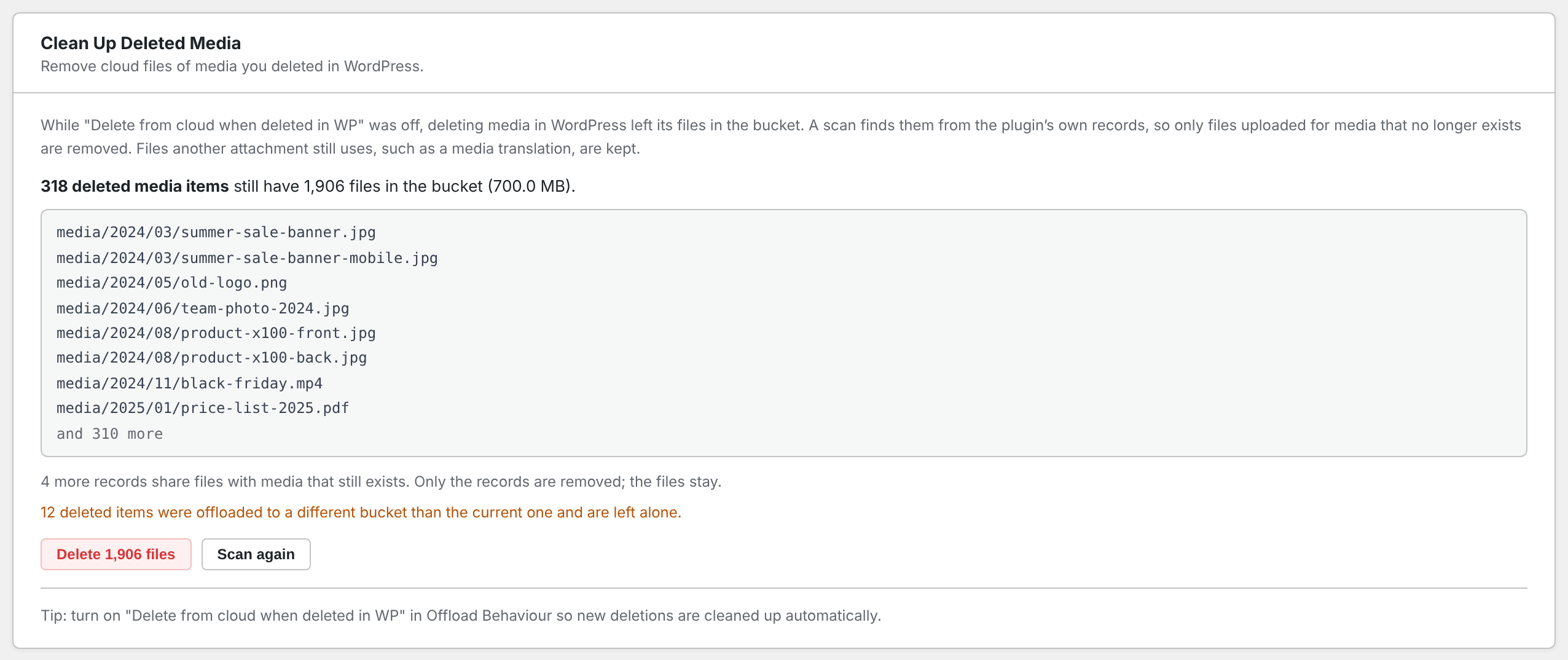
- Go to Media Cloud > Settings and scroll to Clean Up Deleted Media.
- Click Scan for leftover files. The scan reads records only; nothing is deleted.
- Review how many deleted items have files left, how much space they take, and the example paths.
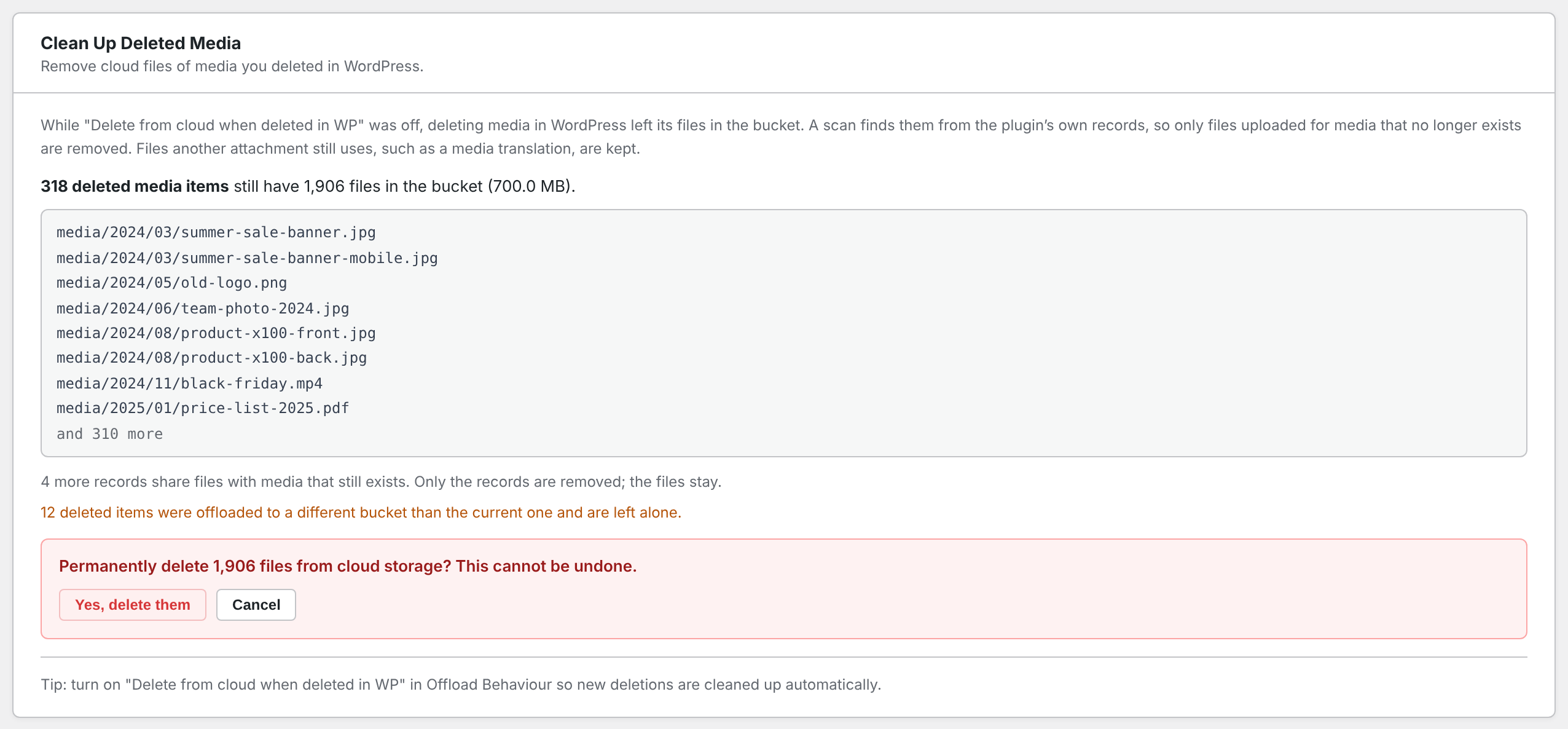
- Click Delete N files, then Yes, delete them. This cannot be undone.
- Keep the tab open until the result appears.
Copies cached on your CDN expire on their own.
From the command line#
wp wpmc cleanup --dry-run
wp wpmc cleanup --yes
On multisite, add --network for every site, or --sites=2,5.
Multisite with a shared bucket#
If several sites share one bucket without a path prefix, a file could belong to any of them, so the clean-up refuses to run and says so. Give each site its own prefix, such as sites/%site_id% (see Custom path prefix). A main site without a prefix next to subsites using sites/%site_id% is fine.
Avoiding leftovers in future#
Turn on Delete from cloud when deleted in WP in Settings > Offload Behaviour. See Mirror deletion.