
Activating your licence
This page explains how to activate your WP Media Cloud licence key on a site. It also covers freeing a site slot and fixing failed activations.
What the licence does#
Your licence key connects the site to your WP Media Cloud purchase. An active licence lets WordPress receive WP Media Cloud updates on the Plugins and Updates screens.
In WP Media Cloud 1.1.9, the storage, CDN and offload features do not check the licence. You can run the setup wizard and offload media before or after you activate.
Before you start#
- Install and activate the plugin. See Installation.
- Find your licence key in your order confirmation email or your customer dashboard.
- Make sure your server can make outbound HTTPS requests. Activation contacts the SureCart licensing service at
api.surecart.com.
Activate the key#
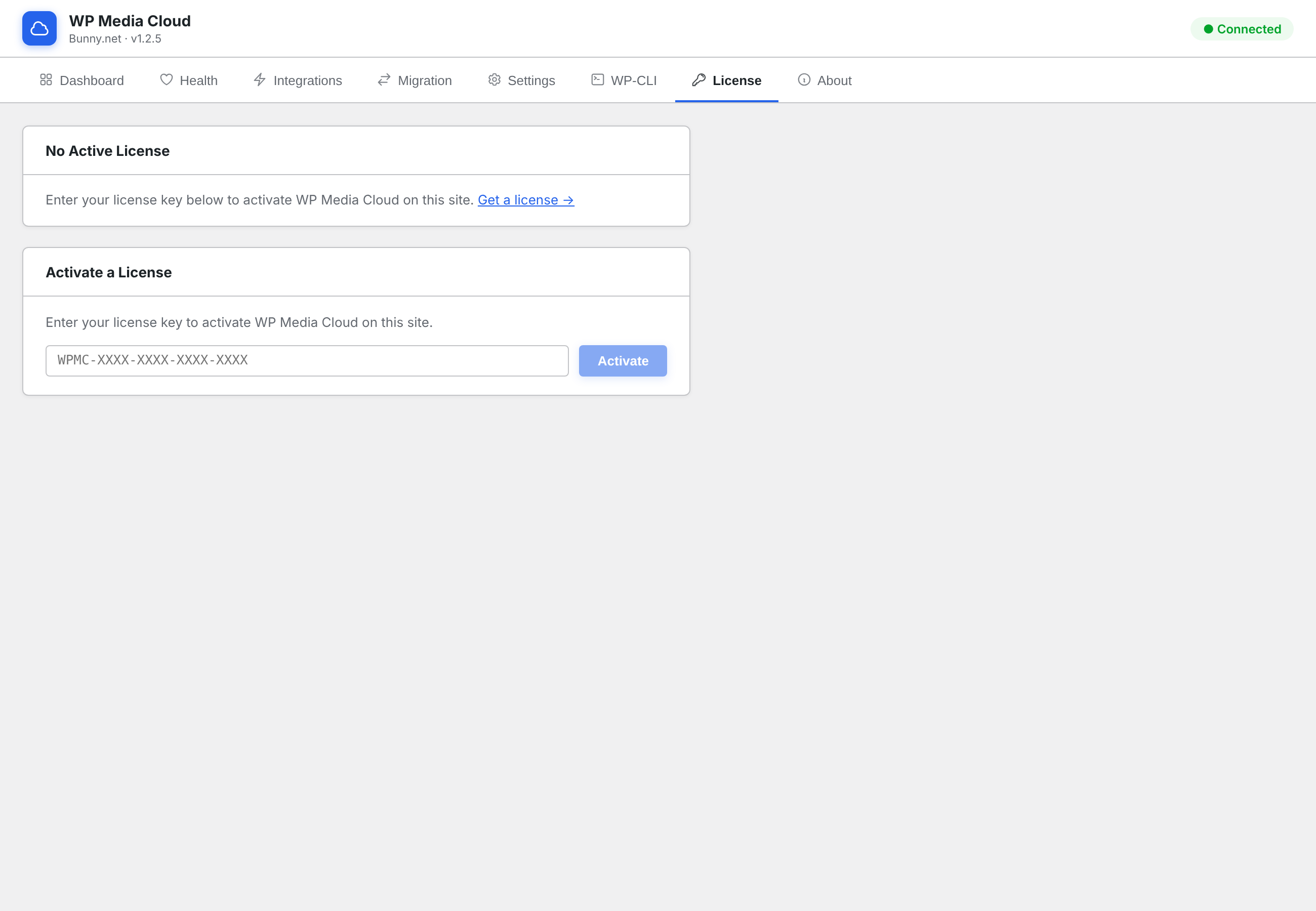
- In the WordPress admin, open Media Cloud and click the License tab.
- Paste your key into the field under Activate a License. Copy it without extra spaces.
- Click Activate.
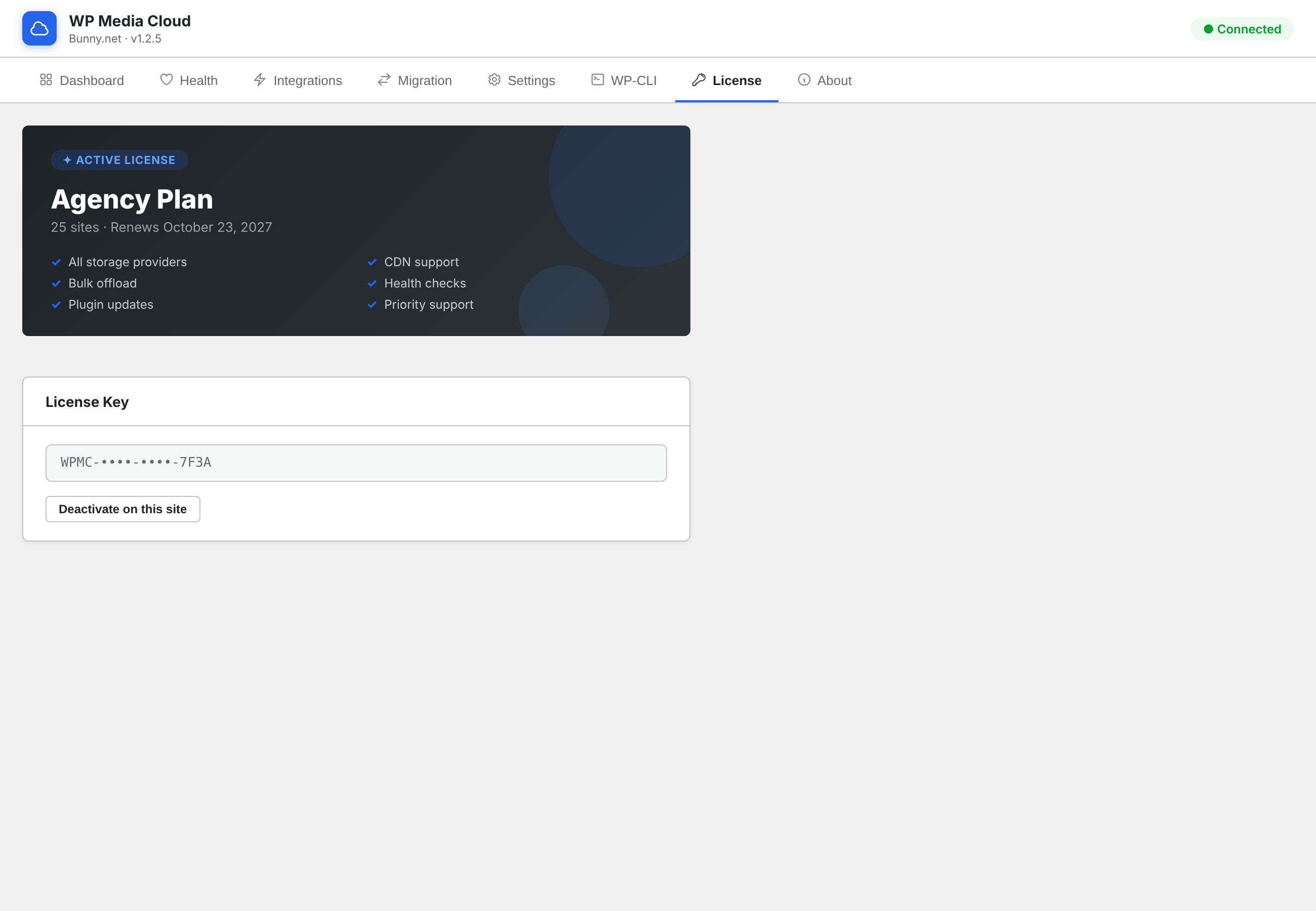
- Wait for the page to show the Active License banner.
The banner shows your plan name, the number of sites it covers, and the renewal date. A lifetime licence shows Lifetime license instead of a renewal date. Below the banner, the key is shown with its middle part hidden.
Below the key field, a message starting with “License activated:” confirms it. The Active License banner also shows the key is active.
What is sent to SureCart#
When you click Activate, WP Media Cloud sends your licence key, your site URL and your site title to SureCart. The site URL identifies this site as one activation of your key. No media files or storage credentials are sent.
Once a day, the plugin checks the activation with SureCart through WP-Cron. If the activation was removed or the licence was revoked, the site shows no active licence again.
Plans and site limits#
Each activation uses one site slot. Staging and development sites count when you activate the key on them.
| Plan | Sites |
|---|---|
| 5 Sites | 5 |
| 25 Sites | 25 |
| Unlimited | No limit |
| Lifetime | 1,000 |
The plan name in the banner comes from your purchase in SureCart. For current prices, see the pricing page.
On a multisite network, each subsite has its own License tab. Each subsite where you activate the key uses one site slot.
Deactivate a site#
Deactivate when you retire a site, move to a new domain or want to reuse the slot elsewhere.
- Open Media Cloud > License.
- Click Deactivate on this site.
- Confirm the prompt.
The plugin tells SureCart to remove this activation, which frees the slot. Your offloaded media, settings and records are not touched. Files keep loading from your storage and CDN.
Troubleshooting#
| What you see | What it means | How to fix it |
|---|---|---|
Invalid license key. Please double-check it and try again. | SureCart did not find the key. | Copy the key again from your order email, without spaces. Check that it is a WP Media Cloud key. |
This license has been revoked. Please contact support. | The licence was cancelled or refunded. | Contact support with your order number. |
| A message about the activation limit | Every site slot on the key is in use. | Deactivate the key on a site you no longer use, then try again. |
Could not create activation. Please try again. | SureCart accepted the key but did not create the activation. | Wait a minute and click Activate again. |
| A cURL or timeout error | Your server could not reach api.surecart.com. | Ask your host to allow outbound HTTPS to api.surecart.com. |
| Before 1.1.9: an error after clicking Activate, then an active banner after reloading | The key was activated. Versions before 1.1.9 showed an error by mistake. | No action needed. Update to 1.1.9 or newer. |
If none of these match, contact support with your order number.