
Serve fonts from your siteNew
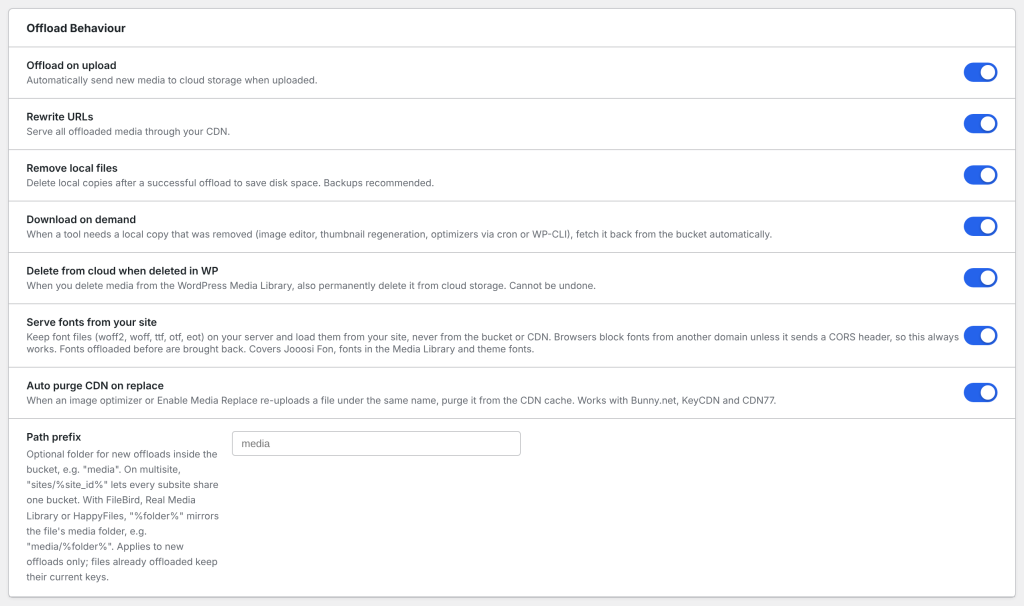
Serve fonts from your site keeps font files on your server and loads them from your own domain, never from the bucket or the CDN. It is on by default from version 1.2.3.
Why fonts stay on your site#
Browsers only use a font from another domain when that domain allows your site with a CORS header (Access-Control-Allow-Origin). Images don’t need this; fonts do. Many buckets and CDNs don’t send the header by default, so a font served from the CDN can download and still be refused, and the page shows a fallback font. Fonts loaded from your own domain always work, and font files are small, so serving them from your site costs little.
What it covers#
Font files are files ending in .woff2, .woff, .ttf, .otf or .eot. With the setting on:
- Fonts in the Media Library are never offloaded: not on upload, not by Offload All Media, not by the background offload, not by
wp wpmc offload. Other media is offloaded as usual. - Font plugins load their fonts from your site. See Font plugins.
- Theme and plugin fonts: with Theme and plugin assets on, stylesheets are still copied to the CDN, but the fonts they use are not, and each copied stylesheet loads its fonts from your site.
- Local copies: font files always keep their copy on your server. Remove local files and Remove Local Copies skip them.
Fonts already on the CDN#
Font files offloaded before the setting was on, or by an earlier version, are brought back automatically:
- The next time you open any admin page, WP Media Cloud looks for font files that are still offloaded. It checks at most once an hour, and again right after you save the settings.
- If a font’s file is missing on your server, it is downloaded from the bucket first.
- The font is then switched back to your site’s address. The copy in the bucket is left where it is.
- Font plugins rebuild their stylesheets, so every font loads from your site.
The first 50 fonts come back straight away; larger sets continue in the background. A font whose file is on neither your server nor the bucket keeps working from the CDN, shows an error in the Media Library, and is tried again once a day.
If you use a page cache, clear it once after the fonts come back.
Turning it off#
To serve fonts from the CDN instead:
- Go to Media Cloud > Settings, switch off Serve fonts from your site in the Offload Behaviour card, and click Save Settings.
- Font files are then offloaded like other media: new ones on upload, existing ones with Offload All Media.
- Make sure your CDN allows your site to load fonts (below).
The Web Fonts (CORS) check#
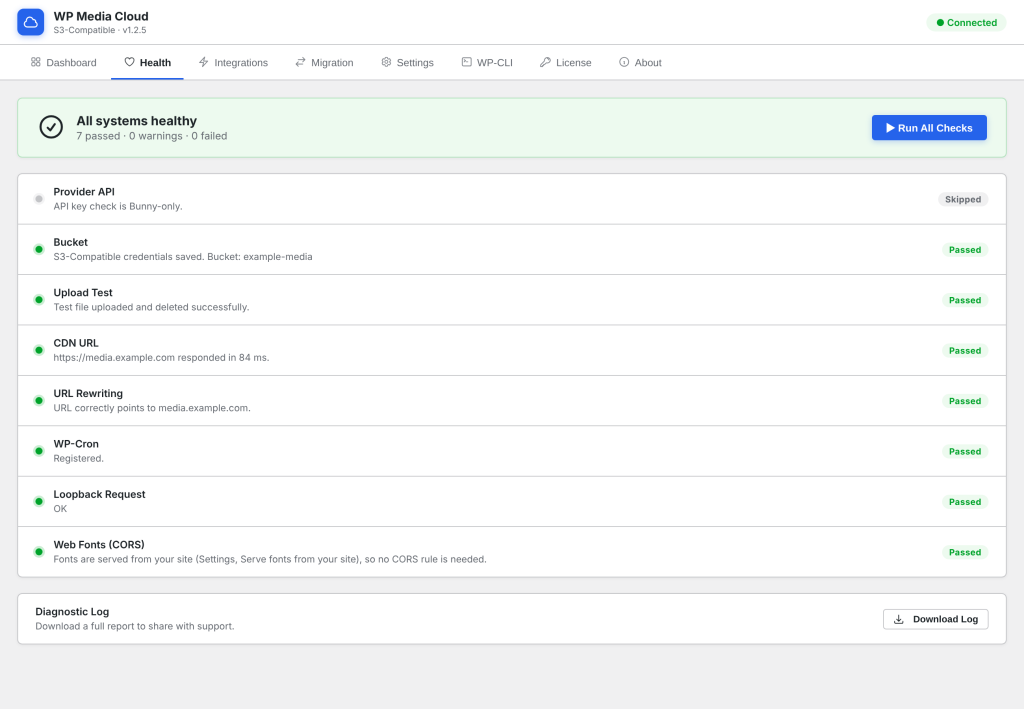
The Health tab has a Web Fonts (CORS) check.
- With Serve fonts from your site on, it passes: fonts load from your site, so no CORS rule is needed.
- With it off, it uploads a small test font, loads it from your CDN as a browser would, then deletes it. It passes when the CDN allows your site, and otherwise tells you what to set up.
| Your setup | What to do when the check warns |
|---|---|
| Amazon S3, Cloudflare R2, DigitalOcean Spaces, Wasabi, Hetzner or Custom S3, with no Bunny.net pull zone in front | Click Allow this site under the checks. WP Media Cloud adds a CORS rule for your site (GET and HEAD) to the bucket and keeps the rules already there. The button only appears when your access key may read the bucket’s CORS rules. |
| Bunny.net storage, or a Bunny.net pull zone in front of a bucket | In Bunny.net, open the pull zone, go to Headers, turn on Add CORS headers and check that woff2, woff, ttf, otf and eot are in its file extension list. |
| Google Cloud Storage | Add a CORS rule to the bucket that allows your site with the GET method, for example with gcloud storage buckets update --cors-file. |
| Backblaze B2 | Open the bucket’s CORS Rules and share everything in the bucket with your site, or with all origins. |
| Any other CDN in front of the bucket | Set the CORS header on the CDN, purge its cache, then run the check again. |
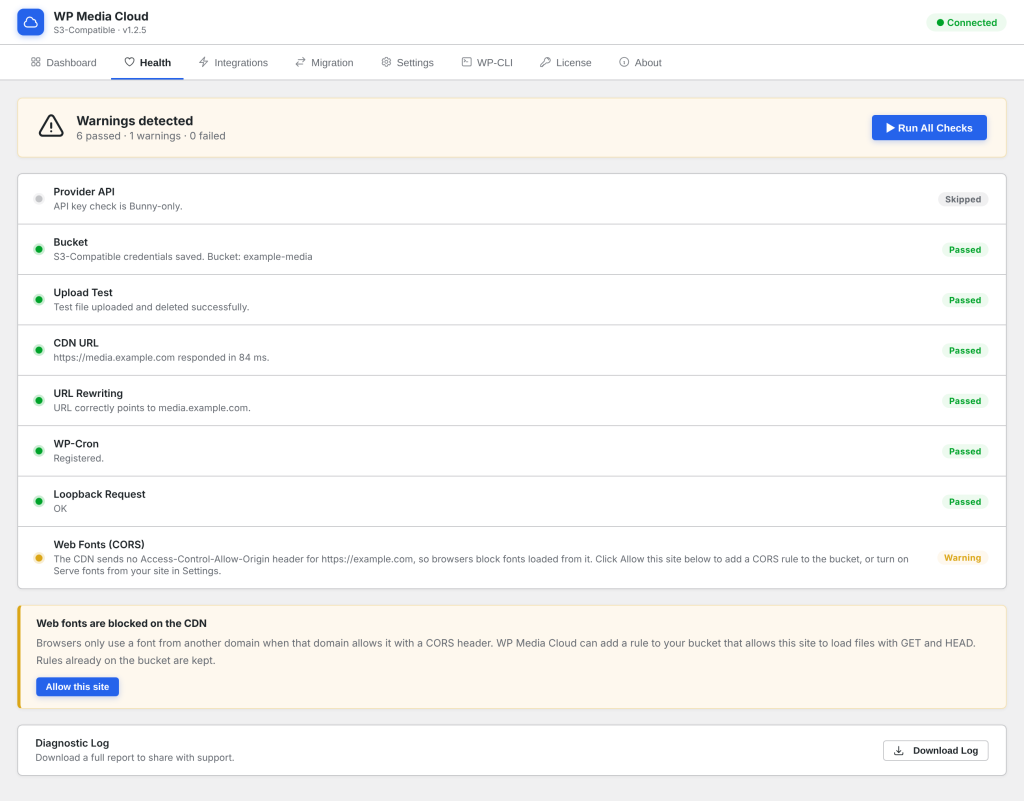
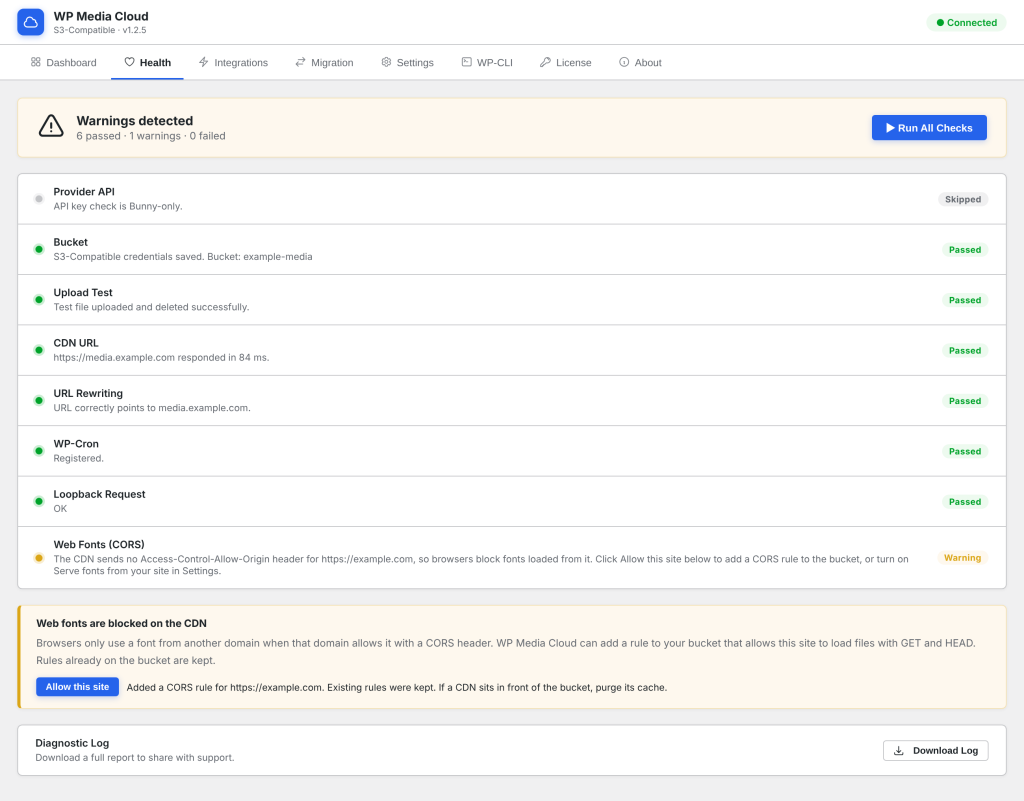
Or turn Serve fonts from your site back on, which needs no CORS rule at all.